The Evolution of Lightroom Presets + How I Edit
Have you ever used Adobe Lightroom for your photo editing? Here I explain why I’ve become 100% reliant on Lightroom presets for my digital workflow. I’m completely lost without them.
Ever since buying a Leica M240 back in 2015, my goal was to develop Lightroom presets that gave 1-click finished edited photos to send to clients (models). Over the last decade my Lightroom presets have evolved and I believe my latest Leica SL2-S presets are my best yet. Let me show you how they work and how I edit my photos.
40% of photographers haven’t tried Lightroom
From my recent newsletter poll I was surprised to see that as many as 40% of you have never tried Lightroom. I just assumed most photographers used Lightroom or CaptureOne but I realise there are many free apps too. I appreciate that the poll results are limited to regular readers but the high number was still a surprise.

First time here? Get your Perks!

Adobe Lightroom vs Photoshop
If you’ve never used Lightroom, the main difference as I think of it compared to Photoshop is Lightroom is a batch editing tool. Photoshop is good if you want to spend hours editing a single image and it lets you edit in layers which is nice. Lightroom is better for editing batches of photos (2 or more images).
With Lightroom you edit one photo then you can apply the edit to an unlimited number of similar photos with a simple copy and paste (“sync”). Photoshop is known as destructive editing and changes made permanently affect the original RAW file. Lightroom is non-destructive editing so the original RAW file remains unchanged.

What is a Lightroom preset?
A Lightroom preset is a former sequence of adjustments saved as a 1-click edit option, similar to a macro if you use Microsoft Excel. Rather than make 20 actions (or move 20 different Lightroom sliders) each time when editing a photo you save those actions as a preset. The preset can then be applied to future images to create the same style look with a single click.
Having a theme or recognisable style
If you are creating a body of work, whether for a photo book or a portfolio, it’s nice to create a common theme, look or colour pallet for your images. If you edit every image individually from scratch using Photoshop or other software it will be pretty difficult to replicate the same stylised look across different images from different days and sessions. (I guess you would need to use a previous photo as a reference image to try to colour match all future images).
I’m not an expert but many say it’s important to create a recognisable look with our photography. When I do my portfolio reviews for students via Zoom, often the image are fantastic but a lack a colour theme would make it difficult for me visual the images together in a book or a gallery.
Black and white editing
The same is true for black and white editing as it’s so easy to create endless variants of grey tones when working on a photo from scratch. I’ll put my hand up and say I don’t always get it right for me. Sometimes I over edit (after applying my preset) to try to recover every last shadow detail. This results in very grey boring flat looking images.
If I then look at my oldest work using cameras with limited dynamic range it’s the black blacks and almost blown highlights that makes these images more special somehow. When looking at old photo books or photo exhibitions it’s usually the high contrast images that jump out at me the most.
What makes art interesting is everyone has their own vision and preferences so it all comes down to personal taste but that’s my 2p worth.

Discovering presets thanks to my Leica M240
When I first bought my Leica M240 camera in 2015 I was hugely disappointed with the files when coming from the Leica M9. For almost a year I lived in regret and I even wrote an article titled “Learning to love my Leica M240”. Yes the Leica M9 files are special and hard to replicate but I needed to try with the M240 as the M9 had gone.
Complete despair finally lead me to teaching myself Lightroom editing and learning how to create Lightroom presets. Over time I developed presets that I could apply to my Leica M240 files which gave me a look I was happy with.
The start of the MrLeica presets
As my online posts and blog articles began to gain traction in the Leica ecosphere people started asking me if I could make my personal Lightroom presets available to download. This was way before forcing myself to become a YouTuber so I was flattered that people were asking.

The growing MrLeica preset catalog
As years passed and I bought different Leica cameras, I developed LR presets specific for each of those cameras. As I owned various Lumix cameras I made presets for those too. Once I started making YouTube videos I was testing various camera brands head to head so I made presets for those cameras also. At the time of writing I now have presets available for all of the following cameras –
- Leica
- Hasselblad
- Lumix
- Nikon
- Canon
- Fuji
Sorry Sony users
One camera brand I’ve never considered or tested is Sony so that is one brand I still need to make presets for. I’ll do my best to test a Sony camera next year and make presets for those too. I know some Leica users own Sony bodies from speaking to Patreons.

How my presets have evolved
When it comes to developing presets my approach is non-technical and I do all adjustments purely by eye. I trust my little brain and eyes to tell me what looks good and what doesn’t. As the years past my tastes change so my latest presets will have a different look to my older presets. Each camera sensor has a unique look so that affects the final image too.
Historically, for each camera I developed a preset bundle which often includes some of the following presets –
- High contrast black and white
- Low contrast black and white
- Natural colours
- Saturated colours
- Stylised colours
Different lenses require different presets
Camera sensors make up part of the final image look but the rest will depend on your lens choice (and lighting). Modern lenses tend to be sharper and higher contrast so I often apply a low contrast B&W preset when editing these images.
Vintage lenses can render flatter looking images that lack contrast so then I apply a high contrast preset when editing. If a lens is something in the middle I start with either B&W preset then adjust the look to taste manually before pasting this edit across all images.


Mindset shift
My latest Lightroom presets were developed differently. Rather than creating presets as either high contrast or low contrast I made them based them on the colour temperature. When shooting outside the light temperature can often be between 5000-6500K (excluding sunrise and sunset). If taking pictures inside under tungsten light the colour temperature will perhaps be 2500-3500K. This colour difference can affect the look of skin when photographing people.
Colour presets
As a film photographer, my colour presets are definitely influenced by film. As mentioned, I do my upmost to my make digital photos as analogue-looking as possible. I’m not trying to make an exact copy of the film look but my presets are definitely inspired by film.
Leica SL2-S presets – My best yet
After developing presets for over a decade I believe my Leica SL2-S presets are now my best yet. Let me share some examples photos using these presets and breakdown the what is included in the new SL2-S preset bundle.

Leica SL2-S bundle includes 5+2 presets:
- MrLeica Leica SL2-S BW (Basic) Preset
- MrLeica Leica SL2-S BW (Cool Light) Preset
- MrLeica Leica SL2-S BW (Warm Light) Preset
- MrLeica Leica SL2-S Col (Basic) Preset
- MrLeica Leica SL2-S Col (Warm) Preset
- MrLeica Leica SL2-S Col (Warm2) Preset – FREE
- MrLeica Leica SL2-S Col (High Contrast) Preset – FREE

Presets for all Leica SL cameras
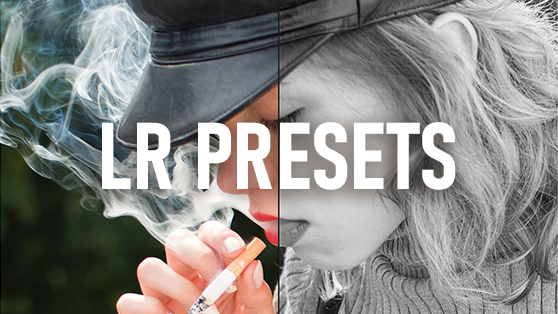
See how presets work (Before and after)
Use the sliders on the images shared below to see how some of these Leica SL2-S presets work when applied to camera RAW files.
“Warm Light” B&W SL2-S Preset
By far my most used Leica SL2-S preset is the B&W “Warm Light” preset. Originally designed for images shot under tungsten light, I now find I use it to edit images under any type of light.
This B&W “Warm Light” preset is the closest edit to my traditional “high contrast presets” found in other preset packs but dialled down a little (and hopefully more filmic/ less digital looking). The B&W “Warm Light” preset has more pop compared to the B&W “Basic” and B&W “Cool Light” if that’s a look that you like.
See the effect of this preset below: RAW on the left, RAW + Preset on the right.


“Colour (Warm)” SL2-S Preset
My favourite and most used colour preset (if I shoot colour) is the Leica SL2-S “Colour Warm” preset. Not too saturated, not too contrasty. A happy middle ground that suits many of my colour photos. Here are some examples using this preset below.
Again, RAW on the left, RAW + Preset on the right.


How to import new presets into Lightroom
- Open Lightroom in the Develop view
- Next, on the left-hand side of the screen select the Presets panel
- Click the “+” icon next to Presets
- From the menu select Import presets
- Navigate to the folder where you saved your presets (such as downloads)
- Click Import
- Your new presets will now display under the Presets menu for future use
How to apply a Lightroom preset to a photo
- Open Lightroom in the Develop view and select your desired photo
- Next, on the left-hand side of the screen select the Presets panel
- Select the preset of choice, say “MrLeica Leica SL2-S BW (Warm Light) Preset“
- Hover your mouse over a preset to see a live preview of the effect on your photo
- Click the preset name to apply the preset to your photo
- To adjust the strength effect of the preset move the sliders on the right-hand side
- For multiple images select all and press Sync (bottom right) to apply to all images
Using SL2-S presets with other Leica cameras
Personally I’ve been loving the Leica SL2-S presets to edit files from all my Leica cameras. Below are some example photos with the following cameras. (All photos are camera RAW files + Leica SL2-S preset applied).
- Leica SL Typ 601
- APS-C Leica CL
- Leica M10-P
Leica SL + SL2-S presets


Leica CL + Leica SL2-S Presets


If you appreciate these reviews please support me on Patreon

Leica M10-P + Leica SL2-S presets


How I edit my photos
If you’ve downloaded my Model Photography eBook you’ll know this already, but if not here is my simple workflow when editing images.
- Capture RAW not JPEG (Recover bad exposures easier + edit to a higher standard)
- Import photos into Adobe Lightroom to batch edit
- Apply 0-5 star rating to your images (0* are failed photos, 1* are fine to send to model small size, 2*-5* are personal favourites)
- Filter photos rated 1* or higher (normally 95% of total images = 300 photos)
- Apply Lightroom preset to first RAW files and adjust to taste (if needed)
- Select all images, sync preset to all RAW files
- Check exposure is correct on all images (correct if required)
- Select all images, export photos as 1mb JPEG files to send to model
- For my Flickr posts, export favourite image(s) full res to open in Photoshop
- In Photoshop I often I add a border, clone out any bad pimples, adjust to taste
- Save Photoshop edit as “v2” so not to overwrite the original file
Models enjoy more photos
As a model photographer this workflow allows me to send each models almost all photos (unless they closed their eyes or something). As models explain in my Model Photography eBook, they much prefer to receive more photos so they can use the images they like the most. (Rather than the photographer only sending their favourite 5-10 images of the 500+ taken). By editing with Lightroom presets I can send more images with minimal effort.

Editing is personal
When it comes to editing there is no right or wrong, only opinion and personal preference. I see many new photographers making their images worse with over editing so my approach is to under edit not over edit. I rarely retouch skin (unless they have a massive pimple waving at me!) and instead try to get photos right in camera. Watch some of my Patreon videos if you want to see how I light models to avoid the need for retouching.
Just think how many hours you can save if you just took 300 images for a model and you don’t need to retouch a single image. Living the dream I say!
I much rather be out making photos than stuck at my desk. I’m on my laptop most of the time anyway either editing YouTube videos or writing blog posts and eBooks. (Now my Travel eBook is finished my next book will be on lighting).
*Note: Black Friday Sale on all eBooks!! Use code BFS5 at checkout

Do you need a Leica SL2-S to enjoy these presets?
If you don’t own a Leica SL2-S camera but like the look of these presets no fear. The black and white presets should work with any camera RAW files, from any camera brand. (One of my Patreons bought the SL2-S preset pack to use with his Sony camera as he was trying to achieve that less digital look and liked the look of the images I was posting on Flickr).
Colour presets may need more adjusting depending on the colours from your specific camera sensor.


Want more info?
To learn more about any of the cameras mentioned follow me on YouTube or if you prefer written format just add your email to receive future blog articles. Have questions? Join me for a 1:1 zoom call and I’d be happy to help.
To support my work please consider joining Patreon and if you’d like to meet me face to face check out my Leica workshops. Hope to see you here again soon!

Pingback: Monthly Recap 🔴 Dec25 – Leica Club